Remove Recording Noise Free in Your Browser — No Install Needed
"I finally got a great take, but the background hiss makes it unusable." "Every noise removal plugin I find costs money." — Sound familiar? Good news: as of 2024, you can remove noise from recordings completely free, right in your browser — no downloads required. This guide walks you through the exact steps to clean up your audio in-browser, plus practical tips for preventing noise in your home studio from the start — beginner-friendly throughout.

First, Understand the Types of Recording Noise
Effective noise removal starts with knowing what kind of noise you're dealing with — the fix depends on the cause.
White Noise (that constant hiss)
That steady "shhh" sound is thermal noise generated by the preamp circuit in your microphone or audio interface. It's especially noticeable with budget USB mics or when you crank the gain too high. Because it's spread evenly across all frequencies, it's called white noise.
Hum (that low electrical buzz)
This 50Hz or 60Hz buzz comes from your power supply. Common causes include ground loops (improper grounding) or having your power adapter too close to your mic. A notch filter targeting those specific frequencies is usually the best fix.
Ambient Noise (HVAC rumble, room reverb, clicks)
This category covers everything that bleeds into your mic during recording: air conditioning hum, computer fan noise, room reflections, traffic outside. These vary over time, making them harder to remove than static hiss — but AI-based tools have gotten remarkably good at handling them.
How to Remove Noise Free in Your Browser — Step by Step
Everything below requires zero installation. All you need is Chrome or Edge.
Using LA Studio's AI Noise Removal Tool
LA Studio's Noise Removal page uses AI to automatically detect and remove white noise, ambient sound, and hum — entirely in your browser. It runs on WebGPU, meaning processing happens locally on your machine. Your audio never leaves your device, which is a significant privacy advantage over cloud-based tools.
- Open the page: Go to https://la-studio.cc/noise-removal. No login or account required.
- Upload your file: Click "Choose File" or drag and drop a WAV, MP3, OGG, or similar file onto the page.
- Run noise removal: Click the "Remove Noise" button. The AI analyzes the noise profile automatically and processes the file in seconds to a few tens of seconds.
- Compare and review: Listen to the before and after. Make sure the voice or instrument sounds natural — no warping or artifacts.
- Download: Happy with the result? Hit "Download" to save the cleaned file to your computer.
LA Studio also includes a full browser-based DAW. Once your file is cleaned up, you can load it straight into the editor and apply EQ, compression, and other finishing touches — all without leaving your browser.
Audacity's Noise Reduction (Free Desktop App)
If you're open to installing a desktop app, Audacity (free for Windows, Mac, and Linux) is the classic go-to. Here's how:
- Open your recording in Audacity.
- Select a section of silence — at least half a second — where only the background noise is present.
- Go to Effect → Noise Reduction.
- Click Get Noise Profile.
- Select all (Ctrl+A), then go back to Effect → Noise Reduction and click OK.
Resist the urge to crank the reduction amount. Start between 6 and 12 dB — push it too hard and your voice will take on a hollow, robotic quality.
Adobe Podcast Enhance Speech (Browser, Free Tier Available)
Adobe's Podcast Enhance Speech tool offers AI noise removal free for files up to one hour. It's purpose-built for voice — narration, podcasts, dialogue — and does an impressive job. The trade-off: it's cloud-based, so your audio is processed on Adobe's servers. Worth keeping in mind for sensitive recordings.
DAW-Based Noise Control: Noise Gates and EQ
If you produce music in a DAW, real-time noise control plugins are worth adding to your signal chain alongside any post-processing tools.
Noise Gate: Silence the Mic When You're Not Singing
A noise gate automatically mutes the signal when it drops below a set threshold — cutting the mic hiss between vocal phrases. It's the quickest way to clean up a vocal track.
- Threshold: Set just above the noise floor. Aim for around −40 to −50 dBFS.
- Attack: 10–20 ms. Too fast and it clips the start of words.
- Release: 200–500 ms. Too short and it chops off natural decay and reverb tails.
Note that a noise gate only works on the gaps between words and phrases. For noise that bleeds through during performance, you'll still need AI-based removal.
High-Pass Filter: Roll Off Low-End Rumble
Every EQ plugin has a high-pass filter (HPF). Use it to cut everything below a set frequency — great for eliminating low-end noise from footsteps, HVAC vibration, and computer fan rumble.
- Vocals and voiceover: cut below 80–120 Hz (the fundamental of a male voice starts around 100 Hz; female around 200 Hz)
- Acoustic guitar: cut below 100–150 Hz

Preventing Noise Before You Hit Record (No Gear Required)
The most effective noise removal is not recording noise in the first place. Post-processing can improve things significantly, but it can rarely restore audio to perfection. These tips cost nothing.
Set Your Gain Properly
Cranking the gain amplifies your preamp's noise right alongside your signal. Aim for peaks around −6 to −12 dBFS by getting closer to the mic or singing with more energy — not by pushing the gain knob. Compensating for a quiet source with high gain is the fastest way to ruin a recording.
Get Your Computer Away from the Mic
- Put your desktop PC on the floor or in an adjacent room.
- Before recording on a laptop, close heavy apps so the fans spin down.
- If your USB bus-powered mic is noisy or unstable, run it through a powered USB hub instead.
- Powering your interface from a phone battery bank can eliminate ground loop hum entirely.
Tame Your Room Reflections
Hard, reflective surfaces add a boxy, echoey quality to recordings that becomes even more obvious after noise removal. Recording inside a closet full of clothes, under a thick duvet, or near heavy curtains is a genuinely effective budget solution. A pair of foam absorption panels (around $30–80 total) placed behind and in front of the mic makes a remarkable difference.
Use a Pop Filter and Reflection Shield
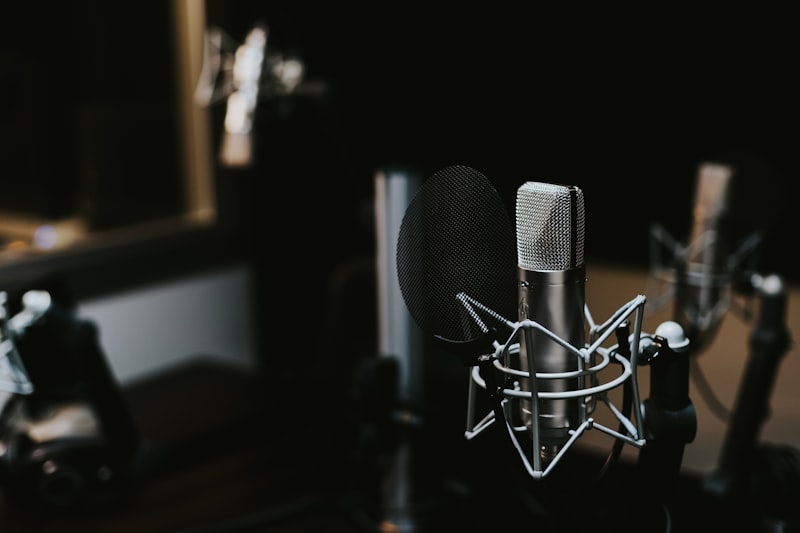
Plosives — the hard "p" and "b" sounds — hit the mic capsule as a burst of air, creating a low-frequency thump called a pop. A pop filter (under $10) placed in front of the mic eliminates this. A reflection filter (mic shield) mounts behind the mic and blocks reflected sound from the room.
Free Noise Removal Tools Compared
- LA Studio Noise Removal: Browser-based, completely free, local processing via WebGPU, no account needed. Supports WAV, MP3, OGG. Integrated with a full browser DAW.
- Adobe Podcast Enhance Speech: Browser-based, free tier (up to 1 hour per file), cloud processing, voice-focused. Adobe account recommended.
- Audacity Noise Reduction: Desktop app, completely free, local processing. Windows/Mac/Linux. Requires manual noise profile selection.
- Krisp: Desktop app, free plan (60 min/week), real-time noise cancellation. Designed for video calls — not ideal for post-processing recorded files.
- NVIDIA RTX Voice / Broadcast: Free, real-time processing, but requires an RTX-series GPU. Not an option on most laptops or older machines.
For browser-based, completely free, post-recording noise removal, LA Studio and Adobe Podcast are the most accessible options. If you want more hands-on control and don't mind installing software, Audacity is the tried-and-true choice.
After Noise Removal: Finishing Touches That Make a Real Difference
Noise removal is a subtractive process — it takes things away. Pair it with some additive processing and your audio will sound polished, not just clean.
Compression: Even Out Your Levels
Once the noise floor is gone, dynamic inconsistencies in your performance become more obvious. A compressor smooths these out, making your audio easier and more consistent to listen to. For vocals, a ratio of 3:1 to 4:1, attack around 30 ms, and release around 100 ms is a solid starting point.
EQ: Add Clarity and Presence
- Boost 3–5 kHz by +2 to +3 dB to add presence and cut-through.
- Cut 200–400 Hz by −2 to −3 dB to reduce boxiness and muddiness.
- Apply a high-shelf boost above 10 kHz to add air and brightness.
Reverb: Restore Natural Space
A completely dry, anechoic recording can actually sound unnatural and clinical. A subtle short reverb — pre-delay around 20–30 ms, decay time around 1.5–2 seconds — brings back a sense of natural space without making the recording sound distant.
Frequently Asked Questions
Q: Will browser-based noise removal degrade my audio quality?
A: Modern AI noise removal works differently from older spectral subtraction methods — it uses a trained model to separate voice from noise, rather than simply subtracting frequencies. Used at appropriate strength, it causes little noticeable degradation. That said, pushing the removal too hard will introduce a metallic or robotic quality. Always listen critically after processing.
Q: Can I remove noise from audio recorded on my phone?
A: Yes. Phone recordings are typically saved as MP3 or M4A files, and LA Studio's noise tool handles MP3. The tool also works in mobile browsers (Chrome on Android, Safari on iOS), so you can process phone recordings directly from your phone if needed.
Q: After noise removal, my vocals are barely audible. What happened?
A: This usually means the removal strength was set too high, or the original recording level was so low that the AI couldn't cleanly separate the voice from the noise. Try reducing the removal intensity and re-processing. Better yet, re-record with peaks hitting around −6 to −12 dBFS — at that level, the AI has enough signal-to-noise ratio to make accurate distinctions.
Q: Audacity's noise reduction is leaving watery, bubbling artifacts. How do I fix it?
A: Lower the Sensitivity setting — the default is often too aggressive. Try setting Sensitivity to 0–6, Noise Reduction to 6–10 dB, and Smoothing (Frequency Smoothing) to 2–3. If artifacts persist even at conservative settings, it's a good sign to switch to an AI-based tool, which tends to handle complex noise profiles more gracefully.
Q: What if I need real-time noise cancellation during a live stream or video call?
A: For real-time use, Krisp (free plan: 60 min/week) and NVIDIA RTX Broadcast (requires an RTX GPU) are purpose-built for that. These are live monitoring tools — they don't process recorded files after the fact.
Wrapping Up: Noise Removal Is Now Free, Fast, and Browser-Based
You no longer need expensive software or a deep understanding of audio engineering to clean up a noisy recording. AI tools that remove white noise and background sound automatically are available free, right in your browser. The easiest place to start is LA Studio Noise Removal — no install, no account, no cost. If you want to take the cleaned audio further with mixing and mastering, the full-featured browser DAW LA Studio Editor keeps everything in one place.
Combine smart recording habits — proper gain staging, acoustic treatment, mic placement — with AI post-processing, and you can achieve genuinely professional-sounding audio from a home setup. Give it a try today.