LASTUDIO
Free to StartCore Tools FreeNo Sign-up

Free 6-Stem Splitter (Guitar + Piano) — No Signup

Split into 6 stems: drums, bass, vocals, guitar, piano & other

Upload a song to split 6 stems

Separate drums, bass, vocals, guitar, piano, and other

Preview each stem
Save each stem as WAV
Continue into mix editing
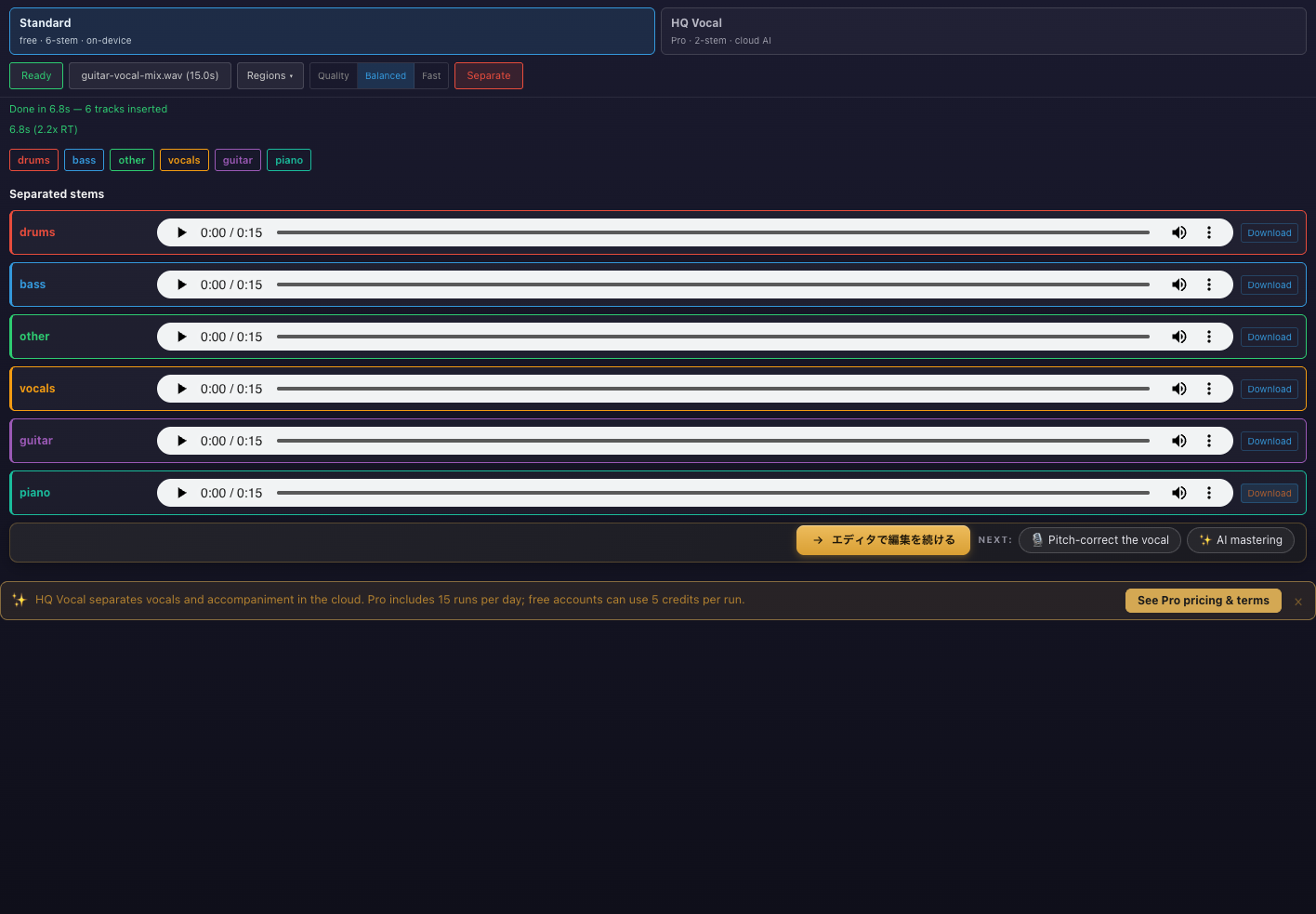
LA Studio's 6-Stem Separation splits any song into vocals, drums, bass, guitar, piano, and other — six individual tracks using state-of-the-art AI. Ideal for remix production, instrument practice, music transcription, and sampling. Free to use with no registration.

All processing runs locally in your browser. No audio data is ever sent to a server, ensuring complete privacy. WebGPU acceleration enables fast processing of even large audio files. Each separated stem can be downloaded individually for use in your projects.

A free 6-stem splitter — with guitar and piano stems, no signup

The tool above splits one song into six separate tracks: vocals, drums, bass, guitar, piano, and everything else. That combination is genuinely hard to find for free — most free stem splitters stop at two stems (vocals and instrumental), and the services that do offer six typically ask you to create an account or buy processing credits before you can download anything. Here you get all six stems with no signup at all.

Under the hood it runs a Demucs-family AI model directly inside your browser, accelerated by your own hardware. That means two things: there is no server queue to wait in, and your audio never leaves your device.

Separation happens entirely on your device — your songs are never uploaded to a server.

How to split a song into 6 stems

  1. Upload a songDrop in an MP3, WAV, FLAC, or M4A file. Processing runs entirely in your browser, so the file never leaves your device.
  2. Split into 6 stemsDemucs-based AI separates vocals, drums, bass, guitar, piano, and other. Most free tools stop at 2 stems — here guitar and piano get their own tracks too.
  3. Preview each stemWhen separation finishes, play each part right on the page to check the isolation before you export anything.
  4. Download or open in the DAWSave any stem as a WAV, or open them all in the browser DAW to remix, practice, or build a karaoke track.

Why 6 stems beats 2- and 4-stem splitters

A 2-stem split — vocals versus everything else — is fine for making karaoke tracks, but it cannot answer the requests musicians actually have: "let me hear just the guitar part" or "give me this song without the piano." Even 4-stem tools (vocals, drums, bass, other) leave guitar and piano tangled together inside "other." With 6 stems, each of those becomes a one-click job: mute the guitar stem to make a play-along backing track, solo the piano to transcribe it, or pull the drum stem out to sample.

For beginners, here is what that looks like in practice. If you are learning guitar, you can remove only the guitar from the original recording and play along with the real band. If you are trying to learn a piano part by ear, you can listen to the piano alone instead of fishing it out of a full mix. And if you make remixes or mashups, you can lay all six parts out as separate tracks in a DAW and rearrange them freely — the separated stems open directly in the browser DAW on this site.

A few more workflows people use every day: keep only vocals and "other" to sketch an acoustic-style arrangement; keep just drums and bass as a rap or freestyle beat; mute only the vocal stem for karaoke (everything a 2-stem tool does is still one click here); or build a minus-one track for band practice by removing whichever part you play. Once you can pull any instrument out of any song, a lot of practice and production ideas stop requiring the original multitracks.

Stem separation or vocal remover — which one do you need?

If all you want is an instrumental or an a cappella, the vocal remover tool on this site (a 2-stem split) is the faster path — one upload, two files, done. Reach for this 6-stem splitter when you care about the instruments individually: isolating a part to practice or transcribe, muting one instrument, or collecting remix material. Both tools share the same AI foundation, so you are not trading quality by picking the simpler one — just choosing how many pieces you want back.

How AI stem separation works, in plain words

Models like the Demucs family used here are trained on thousands of songs where the separate instrument recordings are known. The model learns what vocals, drums, bass, guitar, and piano each "look like" inside a finished mix — roughly, it views the song as a map of time and frequency and decides which instrument each piece of energy belongs to, then rebuilds six audio tracks from that decision. This is also why results vary: sounds close to what the model heard in training separate cleanly, while unusual timbres or heavily-effected parts tend to land in the "other" stem.

You can help the model with a good input file. Use the highest-quality version of the song you have — WAV or FLAC ideally, or a high-bitrate MP3 — because low-bitrate or repeatedly re-encoded audio has already thrown away detail the model needs. And separate the original mix, not something that has already been through another separator or heavy processing, since artifacts stack up with each pass.

What to do with your stems next

Every stem downloads as a standard WAV, so the files drop straight into Ableton, FL Studio, Logic, GarageBand, or any other DAW as ordinary audio tracks. If you do not have a DAW installed, you do not need one: the six stems open directly in the browser DAW on this site, already laid out as separate tracks. From there you can adjust levels, mute or solo parts, add effects, and bounce a finished remix or practice mix without leaving the browser.

The stems also feed the other tools on this site. A separated vocal can go straight into the autotune editor for pitch correction, a guitar or piano stem can be transcribed to notes with the audio-to-MIDI converter, and the BPM detector will give you the tempo and key you need to match a remix to other material — the links to all of these are just below this section.

Why is this free? What is the catch?

No catch — the economics are just different. Services that separate stems on their own servers pay for GPU time on every song, which is why they meter free minutes and sell credits. Because this tool runs the model on your device, each separation costs us almost nothing, so there is no minute limit, no credit system, and no watermark to push you toward a paid plan. LA Studio makes money from Pro features elsewhere on the site that genuinely require cloud computing (like AI music generation) — stem separation is not one of them, so it stays free.

Standard (free, on-device) vs HQ Vocal (Pro, cloud)

Almost everything on this page describes the Standard mode: a free, 6-stem separation that runs entirely inside your browser, with no signup, no limits, and nothing uploaded. That is the tool, and it stays that way. For the one case where you want the cleanest possible vocal-and-instrumental split, there is also an optional HQ Vocal mode that swaps the on-device model for a larger one running on a cloud GPU.

The honest trade-offs: HQ mode is a 2-stem split (vocals + instrumental), not six stems, and because it runs on a rented GPU it is a paid feature — Pro members get 15 separations a day, and everyone else can pay 5 credits per song. It also means your file leaves your device: HQ uploads the audio to a cloud GPU, processes it there, and deletes it within an hour. Every song gets a free 30-second preview first, so you can A/B the HQ vocal against the free version before spending anything. If the Standard result is already good enough — and for most uses it is — there is no reason to switch.

Honest limits: what to expect

First, speed. Because the AI runs on your device instead of a server farm, processing time depends on your hardware: a recent computer with WebGPU support typically takes a few minutes per song, while older machines and very long tracks take longer. The trade-off is that there is never a queue, a daily minute limit, or a locked download at the end.

Second, quality. Every separation AI — this one included — depends on the mix it is given. Instruments that share frequencies, like acoustic guitar and piano, can bleed into each other a little, and dense walls of distorted guitar are the hardest case for any model. For practice, transcription, remixing, and sampling the results are usually more than good enough, but no tool can honestly promise perfectly clean isolation on every song.

Finally, requirements. Six-stem separation is a heavyweight model, so very long files (an hour-long DJ mix, say) or devices with little free memory can fail mid-process. If that happens, split the audio into individual songs first, or run it on a computer instead of a phone. A current version of Chrome or Edge is the most reliable environment, since they have the most mature WebGPU support.

How it compares to other stem splitters

The practical differences come down to three things: how many stems you get, whether you have to sign up, and where your audio gets processed.

LA Studiosoundtools.ioStemSplit.ioTypical free vocal removers
Stems6 — vocals, drums, bass, guitar, piano, other4 — vocals, drums, bass, other2, 4, or 62 — vocals and instrumental
Dedicated guitar + piano stemsYesNoYes, in 6-stem modeNo
Works without signupYes — including downloadsYesNo — signup required to download resultsVaries
PriceFreeFree5 free minutes after signup, then $0.10–0.20/minFree, often with limits
Where processing happensIn your browser — nothing uploadedIn your browserOn their servers — files are uploadedUsually on a server

Competitor details are as published on their sites as of July 2026 — check each service for current terms.

Frequently asked questions

Is the stem splitter free? Do I need an account?

Yes — it is free and there is no signup. Drop a song in and split it into 6 stems, and you can download every stem without creating an account.

Which 6 stems do I get?

Vocals, drums, bass, guitar, piano, and "other" (everything left over, like synths and strings). Getting guitar and piano as their own tracks is the big difference from 2- and 4-stem tools.

Do my files get uploaded to a server?

No — the free Standard stem separation runs the Demucs AI model inside your browser, so your audio never leaves your device. The one exception is the optional HQ Vocal mode: it uploads to a cloud GPU and those files are deleted within an hour (see the HQ question below).

What is HQ Vocal Separation?

HQ Vocal Separation is an optional paid mode (Pro or credits) that produces a higher-quality 2-stem split — clean vocals and instrumental. Unlike the free 6-stem tool, it runs on a cloud GPU instead of in your browser, which is what makes the result noticeably cleaner. You can check the quality with a free 30-second preview first; a full separation is 15 per day on Pro, or 5 credits per song otherwise. Uploaded files are deleted from the server within an hour. The free Standard stem separation stays 100% on your device with no upload — HQ is the only mode that sends audio to the cloud.

Why is 6-stem separation better than 2-stem?

A 2-stem split only gives you vocals and instrumental, so you cannot isolate just the guitar or mute just the piano. With 6 stems you can practice along to one instrument, sample a single part, or rebuild a mix with parts swapped out.

How long does separation take?

It depends on your device, because the work happens on your hardware rather than in a queue on a server. On a recent computer with WebGPU it typically takes a few minutes for a full song; longer tracks and older machines take longer.

Will the stems be perfectly clean?

Honestly, no tool gets perfect isolation. Quality depends on the mix — instruments that share frequencies, like guitar and piano, can bleed into each other a little. For practice, remixing, and sampling, the results are usually more than good enough.

What formats are supported, and what do I get out?

You can upload MP3, WAV, FLAC, M4A, and other common formats. Each separated stem downloads as its own WAV file.

Can I use the separated stems commercially?

The tool itself adds no restrictions, but separating a song does not give you rights to it — publishing stems from someone else’s track still requires permission from the rights holders. Stems from your own recordings or licensed material are yours to use freely.