How to Export High-Quality WAV from a Browser DAW [Free & Complete Guide]
Browser DAWs Can Now Export True High-Quality WAV
"Can I actually export a lossless WAV from a song I made in a browser?" — That's the real question on everyone's mind. The short answer: browser DAWs as of 2024 support HQ WAV export at 32-bit float / 48kHz, letting you produce professional lossless audio entirely in your browser, for free, with nothing to install. That said, if you don't understand which tools support it, what export settings to choose, or how much of a difference it makes compared to MP3, you risk finishing a track and saving it in a lossy format without even realizing it. This guide covers everything you need to know — how HQ WAV export works in browser DAWs, the exact steps to do it, and the pitfalls to avoid.
WAV vs. MP3: Understanding Lossless Audio
WAV is an uncompressed audio format — every detail of the sound is preserved exactly as recorded. MP3, on the other hand, is a lossy compressed format that permanently discards audio data the human ear is less sensitive to, in order to reduce file size.
Key Differences Between WAV and MP3
- WAV (uncompressed): Zero quality loss. Large file sizes (roughly 10MB per minute at 44.1kHz/16-bit stereo). Essential for mastering and remixing.
- MP3 (lossy compression): Even at 320kbps, quality is lower than the original. Smaller files (around 2.4MB per minute). Great for streaming and sharing on social media.
- FLAC (lossless compression): No quality loss, but compressed to roughly 60–70% of WAV size. Still suitable for re-editing.
In music production, the rule is clear: always save your intermediate files and final master in a lossless format. Once you convert to MP3, the lost quality is gone forever — re-exporting it as a WAV won't bring it back. If your track is destined for a video soundtrack, a distribution platform, or another DAW, a WAV export isn't optional — it's essential.
What to Look for in a Browser DAW's WAV Export
When evaluating a browser DAW for WAV export, there are three specs that matter most.
① Bit Depth
Bit depth determines the dynamic range of your audio.
- 16-bit: The CD standard. 96dB of dynamic range. Fine for everyday listening.
- 24-bit: The professional studio standard. 144dB of dynamic range. Ideal for mastering.
- 32-bit float: The highest quality. No rounding errors, even after stacking multiple plugin processes. Since most browser DAWs process internally at 32-bit float, exporting at this depth gives you the most accurate, lossless result possible.
② Sample Rate
- 44.1kHz: The CD standard and the most common format for music distribution.
- 48kHz: The standard for video and film. Recommended for YouTube videos, podcasts, and any audio synced to picture.
- 96kHz / 192kHz: Hi-res audio. Useful within a DAW's internal processing chain, but whether it makes an audible difference in the final output is debated.
③ Offline Bounce Support
DAWs that only support real-time export take as long to render as the track itself — and since the CPU is handling plugin processing on the fly, you may end up with noise, glitches, or dropouts. Offline bounce (also called offline export) renders the audio faster than real-time and with much higher accuracy.
Browser DAW WAV Export Comparison
Here's how the main browser-based and online DAWs stack up when it comes to WAV export.
- LA Studio (https://la-studio.cc): Free, no account required. Supports 32-bit float / 48kHz HQ WAV export with an offline bounce engine. Plugin instruments like Surge XT, Vital, and Dexed are rendered accurately. WebGPU support delivers near-native processing speed.
- Soundtrap (by Spotify): Free plan available, but WAV export requires a paid subscription (starting around $7.99/month). Sample rate is locked at 44.1kHz.
- BandLab: Completely free. WAV export supported at 16-bit / 44.1kHz. No 32-bit float support. Strong mobile app integration.
- Audiotool: Free. WAV export at 16-bit. Great selection of built-in synthesizers, but export specs are basic.
- GarageBand (iOS/Mac): Technically not a browser DAW, but supports AIFF/WAV export at up to 24-bit. Not browser-accessible.
The takeaway: very few browser DAWs offer 32-bit float WAV export for free without an account — LA Studio is one of the rare exceptions.
How to Export HQ WAV from LA Studio (Step by Step)
Here's exactly how to export a high-quality WAV using the LA Studio editor. No installation needed — just open it in Chrome or another supported browser and you're good to go.
Step 1: Finish Your Project
- Open https://la-studio.cc/editor in your browser (no sign-up required).
- Drag and drop audio files into the editor, or program MIDI tracks.
- Set up your effects in the mixer — EQ, compression, reverb, etc.
- Check that your master bus level isn't clipping (the meter should not be hitting the red).
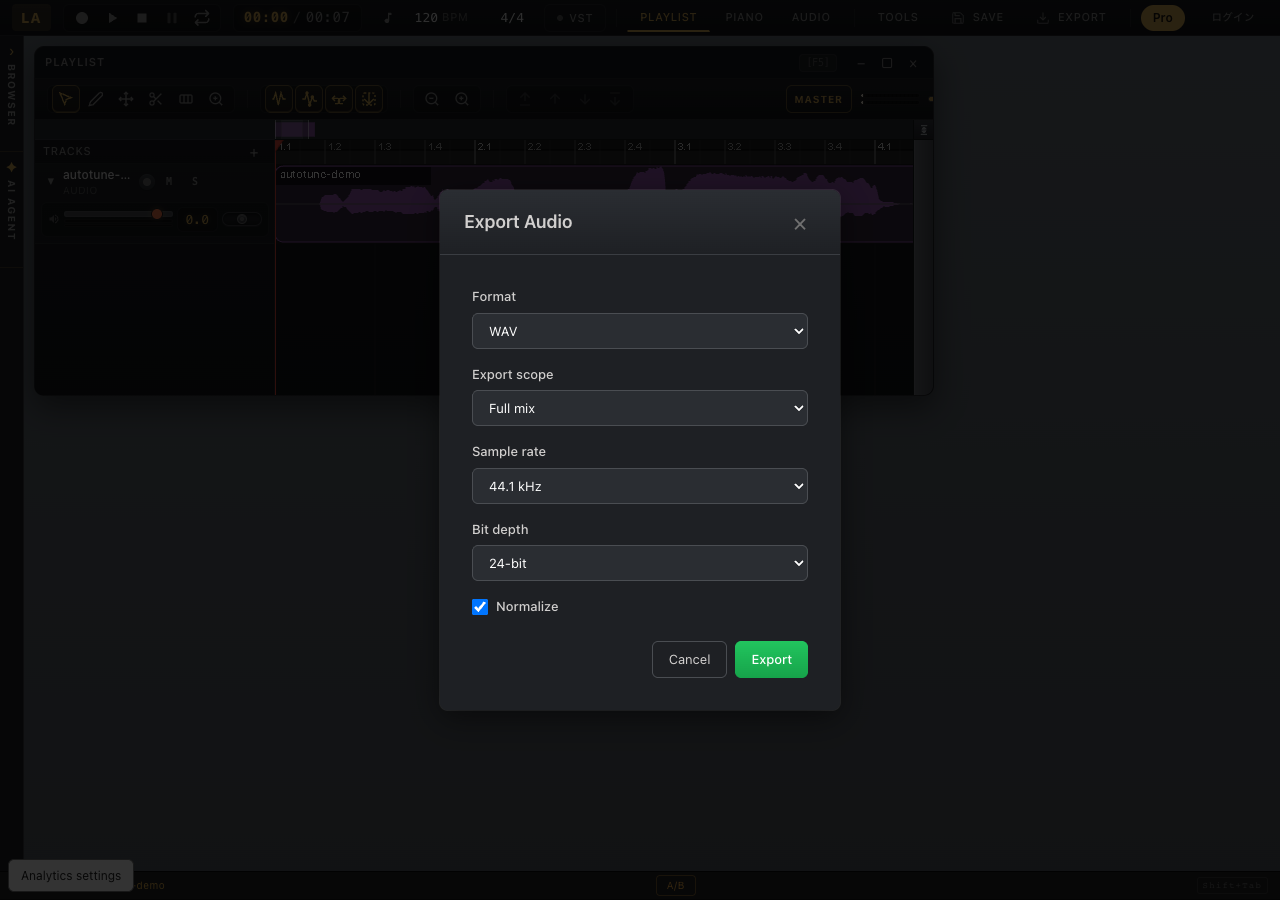
Step 2: Open Export Settings
- Click "Export" in the top menu of the editor.
- Select "WAV" as the format.
- Set the bit depth to "32-bit float" or "24-bit" (32-bit float is recommended for maximum quality).
- Choose your sample rate: 44.1kHz for music distribution, 48kHz for video and podcast work.
Step 3: Render with Offline Bounce
- Click the "Export" button.
- The offline bounce engine will run automatically — faster than real-time playback.
- Once rendering is complete, a download button will appear. Click it to save the WAV file to your computer.
The exported WAV is ready for CD mastering, uploading to a distribution platform, or importing into another DAW for further work.
How to Verify Your Export
To confirm your WAV was exported correctly, open it in Audacity (free, open-source) and check the track properties for bit depth and sample rate. For a more detailed readout, MediaInfo will give you the full technical breakdown of the file.
Common WAV Export Mistakes and How to Fix Them
Mistake 1: The exported audio is clipping (distorting)
Cause: The master bus output level is exceeding 0 dBFS.
Fix: Insert a limiter or true peak limiter on the master bus before exporting, and keep the ceiling at -1.0 dBTP or below. Note that streaming platforms like Spotify and Apple Music apply loudness normalization (targeting -14 LUFS), so over-compressing your master will actually make it sound quieter and duller, not louder.
Mistake 2: The exported WAV won't play in Windows Media Player
Cause: Windows Media Player sometimes doesn't support 32-bit float WAV files.
Fix: Use VLC Media Player or Audacity for playback. Alternatively, re-export at 24-bit or 16-bit. For commercial distribution, 24-bit WAV offers the best compatibility.
Mistake 3: Synth sounds are missing from the exported file
Cause: In DAWs that only support real-time export, latency settings can cause timing mismatches between MIDI and audio, causing certain synth notes to drop out of the render.
Fix: Use a DAW with offline bounce support. LA Studio's offline bounce engine processes plugins at the engine level, which avoids this issue entirely.
Mistake 4: The file size looks way off
Reference sizes (stereo): ~10MB/min at 44.1kHz/16-bit; ~15MB/min at 24-bit; ~20MB/min at 32-bit float. If your file is much smaller than expected, it may have exported as mono. If it's much larger, check whether the sample rate jumped to 96kHz or higher.
A Lossless Workflow for Browser-Based Music Production
Here's a recommended workflow for completing a professional-quality track entirely in your browser.
- Source your sounds: Use WAV samples (minimum 24-bit/44.1kHz). If you must use MP3 samples, go in knowing there's a quality trade-off.
- Record: LA Studio supports multitrack recording directly in the browser — vocals and instruments included.
- Prep your material: If you're working with existing songs, run stem separation or noise removal first and save the results as WAV before importing.
- Mix: Apply EQ, compression, and reverb. Save your project to the cloud (free plan includes up to 5 projects / 300MB).
- Master: Add a limiter on the master bus and target a loudness level between -14 and -9 LUFS.
- Export: Render a 32-bit float WAV as your archive master, plus a 320kbps MP3 for distribution and sharing.
Follow this workflow and you'll have a release-ready track produced entirely in your browser. The real strength of browser DAWs is that this same quality is achievable on a Chromebook or a work computer where you can't install software — no compromises required.
Recommended Export Settings by Destination
The right settings depend on where your audio is going. Use this as a quick reference.
- Spotify / Apple Music / Amazon Music: 16-bit or 24-bit / 44.1kHz WAV (for delivery to a distributor — the platform handles conversion from there).
- YouTube / video content: 16-bit to 24-bit / 48kHz WAV. Best compatibility with video editing software.
- CD production: 16-bit / 44.1kHz WAV (Red Book CD standard).
- Hi-res download stores (e.g., HDtracks, Qobuz): 24-bit / 96kHz WAV or FLAC.
- Podcasts: 16-bit / 44.1kHz WAV or MP3 at 192kbps or higher.
- Importing into another DAW (Logic Pro, Ableton Live, etc.): 32-bit float / 48kHz WAV — maximum information, zero generation loss.
Frequently Asked Questions
Q: Is the WAV from a browser DAW the same quality as one from a professional desktop DAW?
A: At the same bit depth and sample rate, yes — a WAV is a WAV. Since it's an uncompressed format, the file quality is determined by the specs, not the application that created it. That said, the quality of the plugins and processing algorithms in your mix will still affect the final sound, regardless of which DAW you use.
Q: Should I export at 32-bit float or 24-bit?
A: If you're delivering a final master for streaming or download, 24-bit is perfectly sufficient. If you're handing off stems to another DAW for further processing, or saving an archive master, 32-bit float preserves the most information with zero loss. Since most browser DAWs process internally at 32-bit float, that export option also gives you the most accurate representation of your internal mix.
Q: Do I own the copyright to music I export from a free browser DAW?
A: Music you create yourself using a tool like LA Studio is generally your intellectual property. However, if you use any built-in preset samples or loops provided by the DAW, you'll want to check the terms of service to confirm their licensing for commercial use. LA Studio's terms explicitly address ownership rights for user-created music.
Q: Can I export HQ WAV on a Chromebook or iPad?
A: Chromebooks run Chrome natively, so browser DAWs like LA Studio work without any issues. iPads are a bit more limited — Safari has some restrictions on the Web Audio API that can reduce functionality. For the best experience on iPad, install Chrome, or switch to a Mac or Windows desktop environment.
Q: Is WAV export actually free on browser DAWs?
A: LA Studio offers HQ WAV export completely free with no account required. BandLab is also free but tops out at 16-bit. Soundtrap requires a paid subscription for WAV export. A browser DAW that lets you export 32-bit float WAV for free and without limits is genuinely rare — LA Studio is one of the only options available today.
Conclusion
Exporting high-quality WAV from a browser DAW is no longer a compromise — it's a legitimate option. With a tool that supports offline bounce and 32-bit float / 48kHz export, you can produce lossless, release-ready audio entirely in your browser, completely free, with no account or installation required.
What matters most isn't which DAW you choose — it's understanding bit depth and sample rate well enough to match your export settings to your destination. Use the steps and guidelines in this article as your reference, and dive into lossless browser-based music production with confidence.
Start by opening the LA Studio editor in your browser and creating a new project. No installation, no sign-up — just open the link and start making music.