How to Start a Podcast for Free: A Beginner's Complete Guide to Recording & Editing
What Do You Actually Need to Start a Free Podcast? Here's the Short Answer
If you searched "how to start a podcast for free," what you really want is the fastest path to publishing your own show today, without spending a dime. This guide walks you through a completely free podcast production workflow that works with nothing more than a smartphone or computer with a built-in mic — with clear, step-by-step instructions throughout.
The bottom line: you only need three things to start a podcast.
- A way to record (your PC or phone's built-in mic works fine; a USB mic is even better)
- Free editing software or tools (browser-based options mean nothing to install)
- A free hosting and distribution platform (Spotify for Podcasters / Anchor, etc.)
Set up these three things in order, and you can publish a near-professional-quality podcast without spending anything. Let's go through each step.
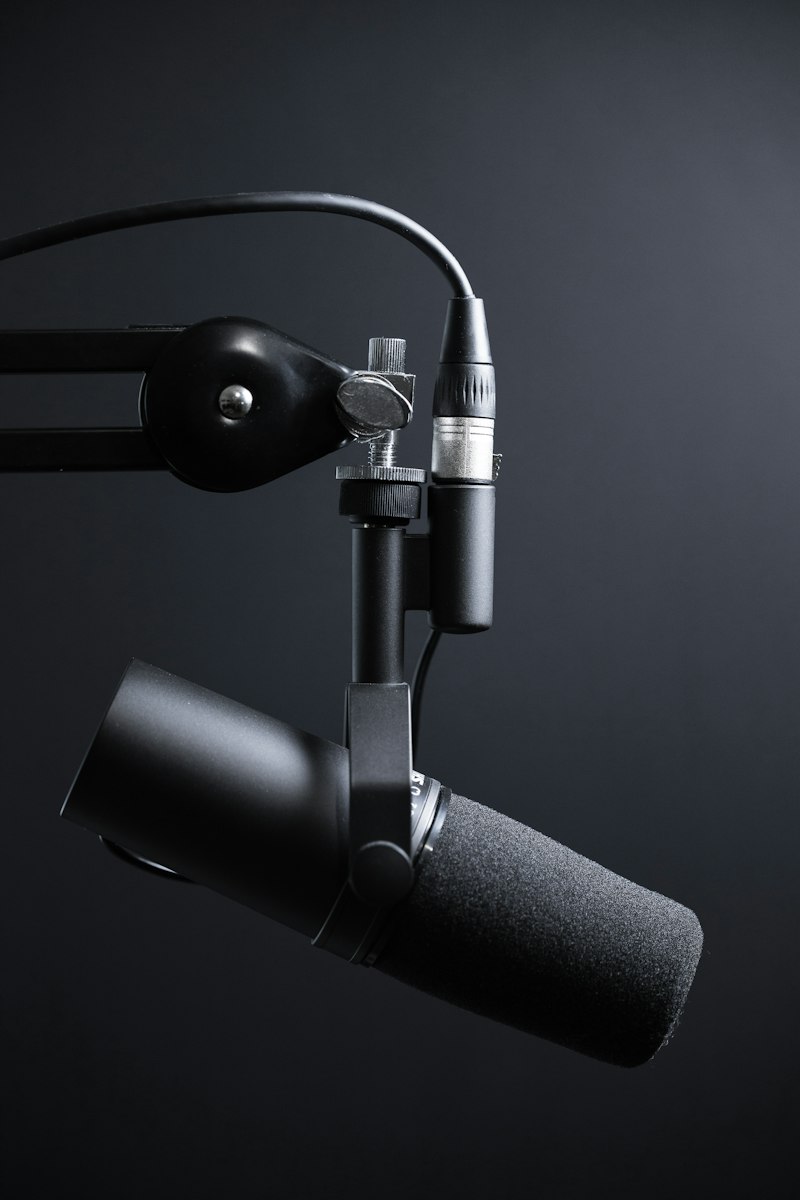
STEP 1: Set Up Your Recording Environment (Gear & Budget Breakdown)
You Can Start With a Built-In Mic
There's no need to buy expensive gear right away. Your laptop or phone's built-in microphone is enough to get started. That said, if you want to improve your audio quality over time, here's a cost-effective progression:
- Built-in mic (free): Perfect for test recordings. Expect more background noise.
- Clip-on lavalier mic for smartphones ($5–$20): Positions close to your mouth for clearer voice capture.
- USB condenser mic ($30–$80): Options like the Blue Yeti Nano or FIFINE K669B are popular choices. Audio quality takes a significant leap at this price point.
Where You Record Matters More Than Your Gear
Your recording location has a bigger impact on sound quality than your microphone. The key is minimizing echo and room reflections.
- Inside a closet (clothing acts as natural acoustic absorption)
- A space surrounded by blankets or a comforter
- A corner of a room with curtains drawn
Avoid tiled bathrooms or rooms with high ceilings — these spaces create noticeable echo that's hard to remove in post.
STEP 2: Record Your Podcast (Using Browser-Based Tools)
Why Choose Tools That Require No Installation
One of the most common beginner pitfalls is giving up during software installation and setup. The good news is that powerful browser-based audio recording and editing tools now exist — and some require no account registration at all.
How to Record in Your Browser
If you're using a browser-based DAW (Digital Audio Workstation), the basic process looks like this:
- Open the tool in your browser
- Click "New Project" or the "Record" button
- When prompted for microphone access, click "Allow"
- Hit the record button (the red circle icon) and start talking
- When you're done, click stop and save the file or move straight into editing
Recording Tips to Keep in Mind
- Set your sample rate to 44.1kHz / 16-bit or higher — this is the standard for podcasts
- Keep the mic 4–8 inches from your mouth. Too close causes plosives (those harsh "p" and "b" popping sounds)
- Record 10 seconds of silence before you start speaking — this gives noise removal tools a clean noise profile to work from
- Don't stop recording when you make a mistake — just keep going and cut it out in editing
STEP 3: Remove Background Noise to Dramatically Improve Audio Quality
Why Noise Removal Is Non-Negotiable
Poor audio quality is one of the top reasons listeners abandon a podcast. HVAC hum, computer fan noise, traffic outside — these are nearly impossible to eliminate at the recording stage, but they can be removed almost entirely in post-production.
How to Use AI Noise Removal (Step by Step)
AI-powered noise removal tools have made professional-grade audio cleanup accessible to anyone — for free. LA Studio's AI noise removal feature runs entirely in your browser: just upload your file and it automatically strips out background noise.
- Drag and drop your WAV or MP3 file into the noise removal tool
- The AI analyzes the noise profile automatically (takes about 10–30 seconds)
- Preview the before and after to hear the difference
- If it sounds good, download the cleaned file — that's all there is to it
Previously, this required manually capturing a noise profile in desktop software like Audacity. AI tools eliminate that step entirely, and they process audio several times faster than traditional methods.

STEP 4: Edit Your Audio (Cutting, Leveling, and Adding Music)
The Essential Editing Checklist
At minimum, every episode should go through these four edits. They make an enormous difference in how listenable your show is.
- Cut dead air and long pauses: Silence longer than 3 seconds makes listeners uncomfortable. Aim to keep pauses to 1–1.5 seconds maximum.
- Remove stumbles and retakes: Use your waveform view to find and delete unwanted sections.
- Normalize your volume levels: Uneven volume is fatiguing to listen to. Target a loudness of -16 to -19 LUFS (Spotify's recommended range).
- Add intro and outro music: Royalty-free music libraries like Free Music Archive or ccMixter give your show a polished, professional feel.
Comparing Free Audio Editing Tools
Here's how the most popular free options stack up:
- Audacity (desktop, free): The long-standing industry standard for free audio editing. Feature-rich but has a dated interface that can be intimidating for beginners. Available on Windows, Mac, and Linux.
- GarageBand (Mac and iOS, free): The best option for Apple users. Intuitive interface with podcast-ready templates built in.
- Descript (web, free plan available): A genuinely innovative tool that lets you edit audio by editing a text transcript. The free plan has export limitations.
- LA Studio (browser, completely free): No installation or account required. Handles recording, noise removal, multitrack editing, and mixing — all in the browser. Works on Chromebooks too.
How to Cut Audio: Step-by-Step
- Drag your audio file onto the timeline
- Zoom into the waveform to spot sections you want to remove
- Click and drag to select the unwanted region
- Press Delete (or Backspace) to remove it
- Slide the remaining clips together to close the gap
STEP 5: Publish Your Podcast for Free
The Best Free Podcast Hosting Platforms
Once your episode is edited, it's time to upload it to a hosting platform. All of the options below are free and can distribute your show to Spotify, Apple Podcasts, and other major directories automatically.
- Spotify for Podcasters (formerly Anchor): The most widely used free platform. Automatically distributes to Spotify, Apple Podcasts, Google Podcasts, and more. Completely free, with a companion app for recording on the go.
- Podbean (free plan available): Up to 5 hours of audio and 500MB of storage per month on the free tier. One of the oldest and most reliable services in the space.
- Buzzsprout (free plan available): Popular in the English-speaking podcasting community. The free plan includes up to 2 hours per month, with episodes hosted for 90 days.
Use Your RSS Feed to Reach Every Platform at Once
When you sign up for a hosting platform, you'll receive an RSS feed URL. Submit this URL to directories like Apple Podcasts and Amazon Music for Podcasts, and every new episode you publish will automatically appear across all platforms. You only need to do this setup once.
Filling Out Your Episode Metadata
Don't overlook these fields — they directly affect how discoverable your show is in search.
- Show title: Memorable and keyword-friendly
- Show description: Clearly state who your show is for and what you cover
- Episode title: Include searchable keywords your target audience would use
- Cover art: 3000×3000px recommended (create it free with Canva or Adobe Express)
- Category: Match the Apple Podcasts category that best fits your content
5 Pro Techniques to Take Your Audio Quality Further
1. De-essing (Taming Harsh Sibilance)
Sibilance is that harsh, hissing "s" and "sh" sound that can make speech grating to listen to — especially pronounced with condenser microphones. A de-esser plugin in your mixer or DAW automatically softens these frequencies.
2. Use a Compressor to Even Out Your Volume
A compressor brings loud moments down and quiet moments up, smoothing out natural variations in your speaking volume. Good starting settings for podcasting: Ratio 3:1–4:1, Attack 10ms, Release 100ms.
3. Shape Your Voice With EQ
Apply a high-pass filter to cut everything below 80Hz — this removes low-end rumble and HVAC noise without affecting your voice. Boosting slightly in the 2–4kHz range adds presence and makes speech easier to understand.
4. Prevent Double Audio When Recording Remotely
When recording with remote guests over Zoom or Discord, always wear headphones. Without them, your guest's voice bleeds into your microphone, creating an audible echo on the recording.
5. Use a Noise Gate to Auto-Mute Silence
A noise gate automatically silences anything below a volume threshold you set — cutting out breath sounds and ambient noise between sentences. It drastically reduces the amount of manual editing you need to do.
All of these processing tools — EQ, compressor, noise gate, and more than 20 other effects — are available for free in the LA Studio editor.
The Complete Free Podcast Workflow at a Glance
To recap everything covered in this guide, here's the full five-step process for producing a free podcast:
- Record: Capture your audio with a built-in or USB mic using a browser-based tool or mobile app
- Remove noise: Use an AI tool to automatically strip out background noise and hiss
- Edit: Cut silences and mistakes, then normalize your volume levels
- Finish: Add royalty-free intro and outro music to give your show a polished feel
- Publish: Upload to Spotify for Podcasters or another free hosting platform
Consistency is your biggest competitive advantage. Even if your early episodes aren't sonically perfect, showing up regularly builds an audience — and as that audience grows, so does your motivation to invest in better gear. The most important step is the first one: record your debut episode today.
Frequently Asked Questions
Q. Can I make a podcast using only my smartphone?
A. Absolutely. iPhone users can use GarageBand, while Android users can record and publish directly through the Spotify for Podcasters mobile app. That said, built-in phone microphones pick up a lot of ambient noise. A clip-on lavalier mic (around $10–$20) makes a surprisingly big difference in clarity. Browser-based editing tools also work on mobile browsers if you prefer to edit on your phone.
Q. Can I use commercial music as background audio in my podcast?
A. No — not without a license. Using copyrighted songs from mainstream artists as podcast background music constitutes copyright infringement. Stick to royalty-free music libraries that explicitly permit podcast use, such as Free Music Archive, ccMixter, or Incompetech. Always read the licensing terms for each track before using it.
Q. What audio format and loudness level should I target?
A. MP3 at 128–192kbps is the most universally compatible format for podcasts. For loudness, target -14 LUFS for stereo or -16 LUFS for mono — Spotify's recommended levels. You can check and adjust this using Audacity's Normalize function or a free online loudness meter.
Q. How do I record a podcast with remote guests?
A. The best approach for audio quality is called "double-ender" recording: each person records their own audio locally, then the files are combined in editing afterward. You can use Zoom or Discord for the live conversation while each participant records independently. Tools like Riverside.fm (free plan available) and SquadCast are also purpose-built for this workflow, automatically capturing each person's audio as a separate track.
Q. How much does it cost to start a podcast?
A. With the setup described in this guide, your starting cost is $0. A built-in microphone, free browser-based editing tools, and Spotify for Podcasters is a completely free combination. When you're ready to upgrade your sound, a USB condenser microphone in the $30–$80 range delivers a noticeable improvement in audio quality.